← Help centreDocuments & masters
Create and issue a quotation
Draft a quote, import RFQ lines from Excel or photo, preview print, then issue.
5 min read
Quotations are customer quotes with Bill to, line items, GST % or Tax % (by company registration), validity, and optional bank/terms on the PDF. Quota is consumed only when you Issue the first time.
Steps
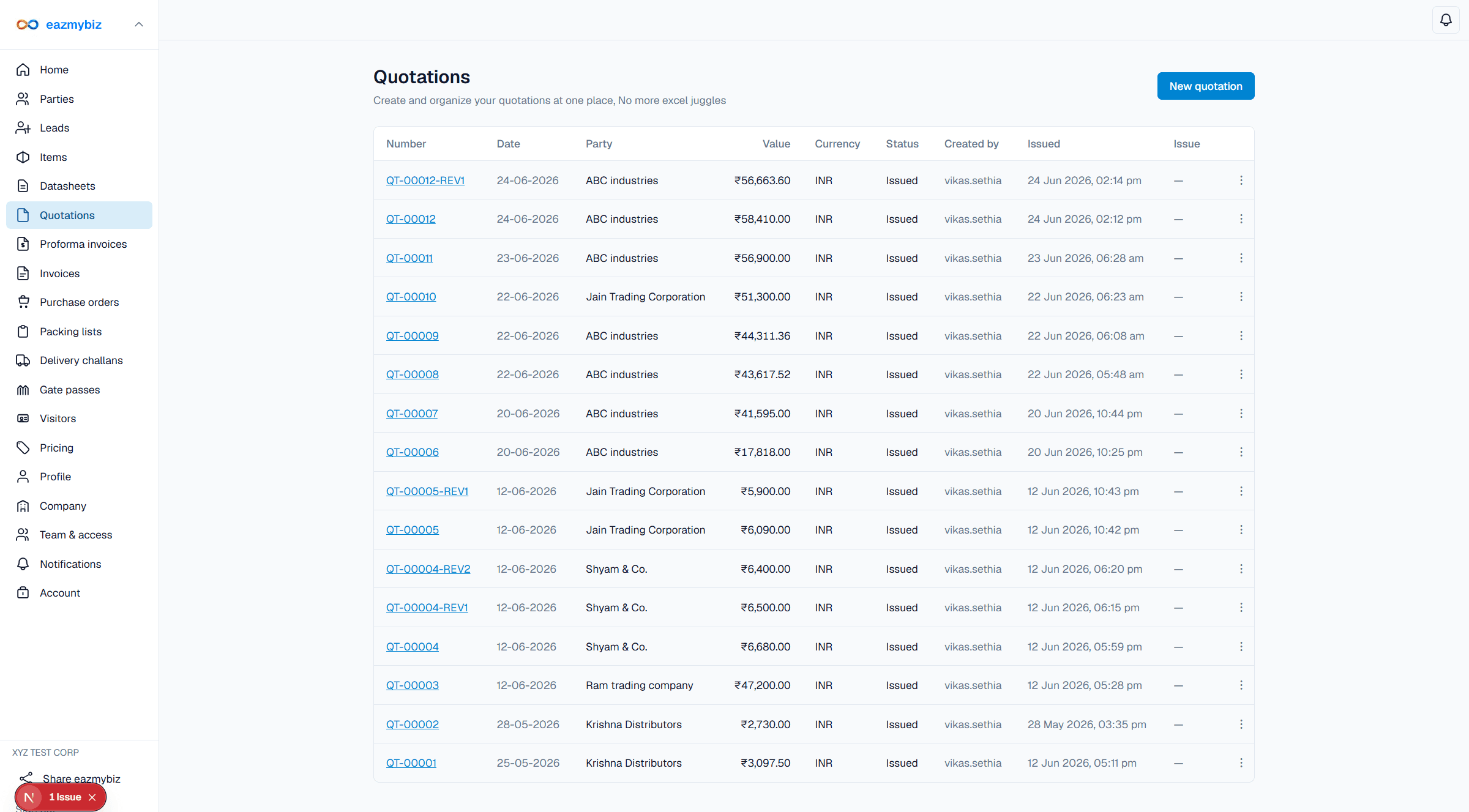
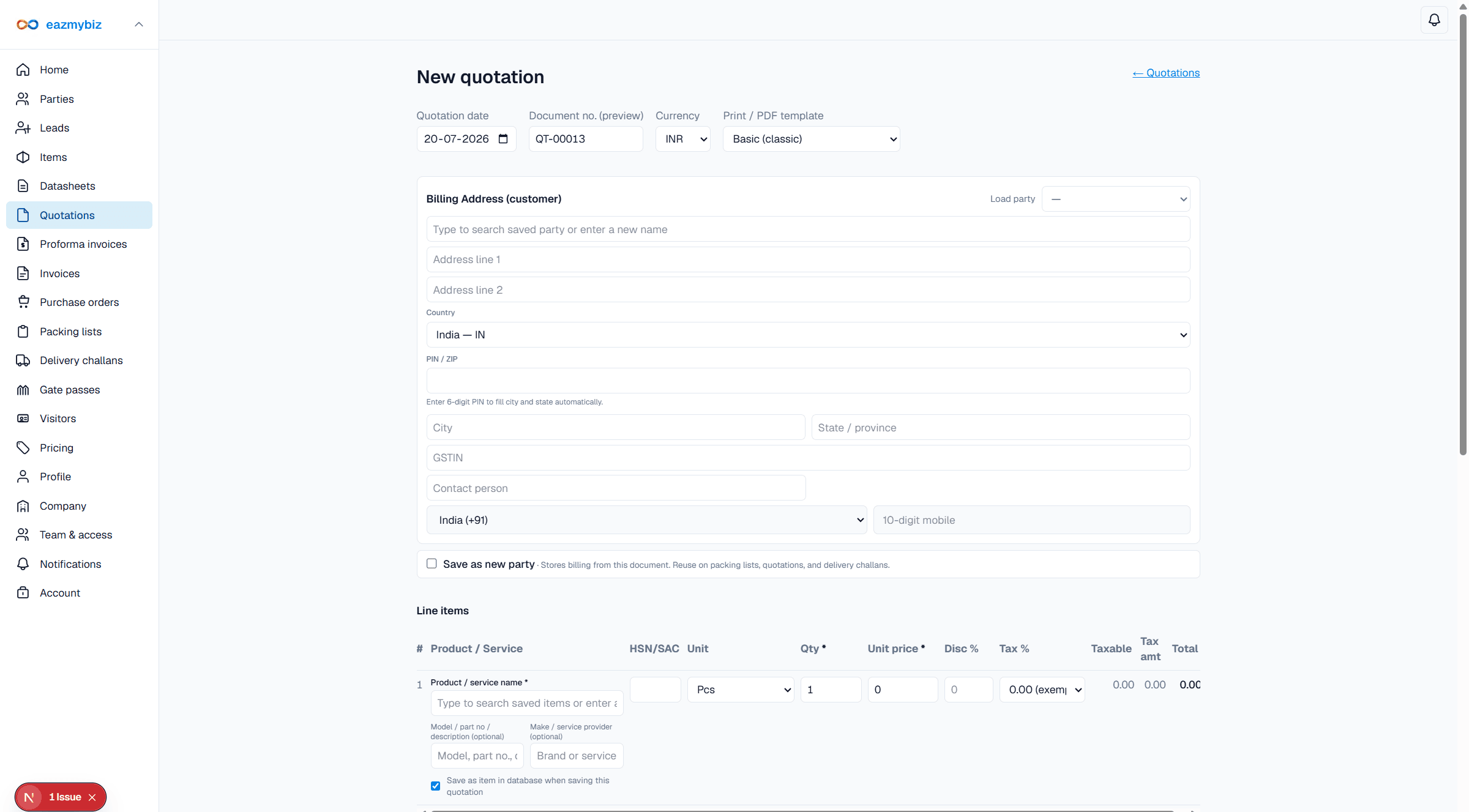
- Open Quotations in the sidebar, then click New quotation.
- Set document date (organization calendar). Add Bill to — type details or Load party from Parties.
- Add line items (description, qty, rate, and GST % for GST-regular India companies or Tax % otherwise). Optionally load from Items, or use Import RFQ lines when the buyer sent an Excel sheet or a photo of a list (see tip below).
- Fill delivery period, Valid until, terms, and notes as needed. Optional Quote Ref. No. is printed under the quotation number (it does not replace numbering). Choose print template if your plan offers more than Basic.
- Click Create draft. You return to the quotation detail screen (status: draft).
- Review with Print preview. When ready, click Issue (list or detail). Issuing opens print and counts toward your monthly documents quota once.
- Re-print or download PDF anytime — that does not use another quota unit.